VMware Health and Security Toolkit: The New Standard for vSphere & VCF Assessments
In modern datacenters, VMware environments have become the beating heart of digital operations. They’re powerful, flexible, and deeply integrated into business‑critical workflows. But as these environments grow, so does the complexity of keeping them healthy, secure, and aligned with best practices.
For years, VMware administrators relied on tools like vHealthAnalyzer (vHA) and TAM Data Manager (TDM) to gain insight into their infrastructure. Useful, yes — but fragmented. Each tool had its own purpose, workflow, and limitations.
That era is now over. VMware has introduced the Health and Security Toolkit (HST), a unified assessment engine designed to bring clarity, consistency, and depth to the way organizations evaluate their vSphere and VMware Cloud Foundation (VCF) environments.
This blog explores what HST is, why it matters, and how it’s reshaping the way we assess VMware platforms.
What Is the VMware Health and Security Toolkit?
The VMware Health and Security Toolkit (HST) is a comprehensive assessment solution that combines health checks, security evaluations, and data collection into a single, streamlined toolkit. It supports vSphere 8 and VCF 5.x, making it relevant for both traditional virtualized environments and modern cloud‑aligned deployments.
HST is built to deliver:
- Health assessments based on VMware best practices
- Security posture evaluations aligned with VMware security guidance
- Integrated data collection (powered by the TAM Data Manager engine)
- Clear, actionable reporting for both technical teams and leadership
In short: it’s the new central hub for understanding the state of your VMware environment.
Key Capabilities of the Health and Security Toolkit
1. Health Assessment
HST analyzes your vSphere or VCF configuration and compares it against VMware’s best practices. It identifies:
- Misconfigurations
- Operational risks
- Performance bottlenecks
- Lifecycle or compatibility issues
This gives administrators a clear roadmap for improving stability and efficiency.
2. Security Assessment
Security is no longer optional — it’s foundational. HST evaluates:
- Hardening compliance
- Security configuration gaps
- Vulnerability exposure
- Alignment with VMware security guidelines
This helps organizations strengthen their posture and prepare for audits.
3. Integrated Data Collection
The TDM component is now fully embedded into HST. This means:
- Faster, cleaner data gathering
- A simplified interface
- Fewer manual steps
- More reliable input for assessments
4. Reporting for Every Audience
HST generates reports tailored to different stakeholders:
- Executive summaries for leadership
- Technical deep dives for engineers
- Actionable recommendations for operations teams
This dual‑layer reporting makes it easier to communicate findings and drive remediation.
What’s New Compared to vHA?
Here’s a quick comparison to highlight the evolution:
| Feature | vHA | HST |
| Health Checks | ✔️ | ✔️ Improved depth & accuracy |
| Security Assessment | ❌ | ✔️ Fully integrated |
| Data Collection | Limited | ✔️ Built-in TDM Engine |
| Reporting | Basic | ✔️ Executive & Technical |
| Interface | Older UI | ✔️ Modern, simplified |
| Platform Coverage | vSphere | ✔️ vSphere & VCF |
How HST Works (High-Level Flow)
The workflow is intentionally simple:
- Deploy or run the toolkit
- Connect to vCenter or VCF
- Collect configuration and usage data
- Run health and security assessments
- Generate reports
- Review findings and plan remediation
This makes HST suitable for VMware TAMs, consultants, and internal IT teams.
Why HST Matters for Organizations
The value of HST goes beyond technical checks. It helps organizations:
- Maintain a stable and resilient VMware environment
- Reduce operational and security risks
- Improve audit readiness
- Support lifecycle and modernization planning
- Communicate clearly with leadership about infrastructure health
In an era where uptime, security, and efficiency are non‑negotiable, HST provides the visibility needed to stay ahead.
Where to Get the Health and Security Toolkit
HST is available through the Broadcom support portal, along with documentation, release notes, and checksums. There is actually a knowledge base article available: https://knowledge.broadcom.com/external/article/414653/where-do-i-download-the-vmware-health-an.html
VMware TAMs and partners also use it as part of their assessment services.
What does it look like?
For me, the easiest way to use HST is to install the OVA in VMware Workstation. Select “File”, then “Open”, and choose the OVA file.
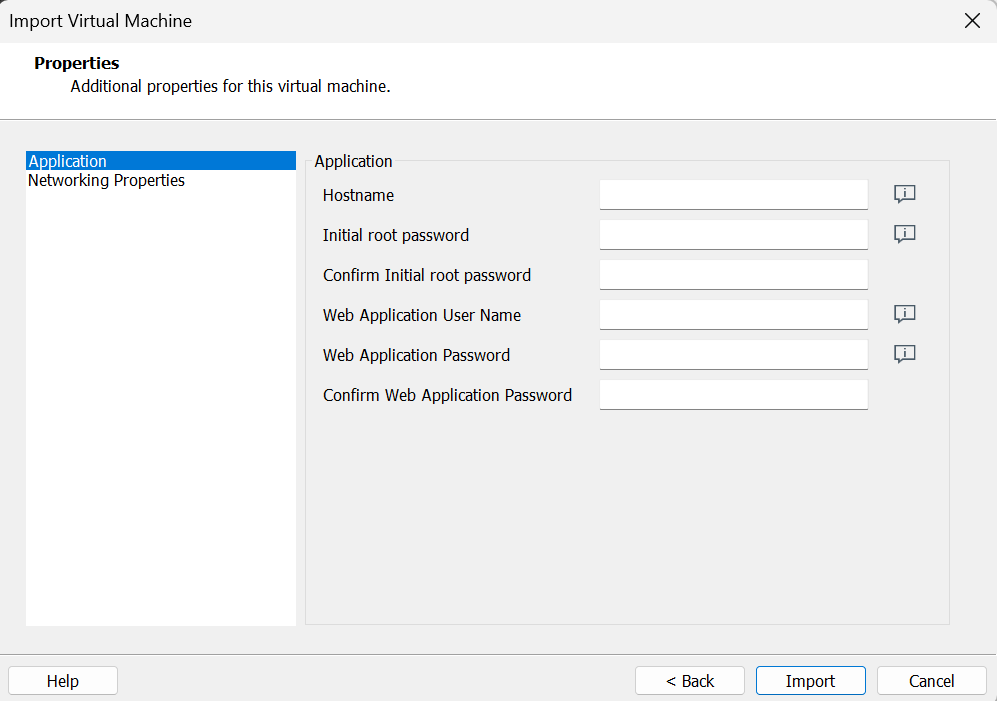
Just fill in the fields and off you go!
When the VM is started, it will display the IP address that you can use to access the web GUI.
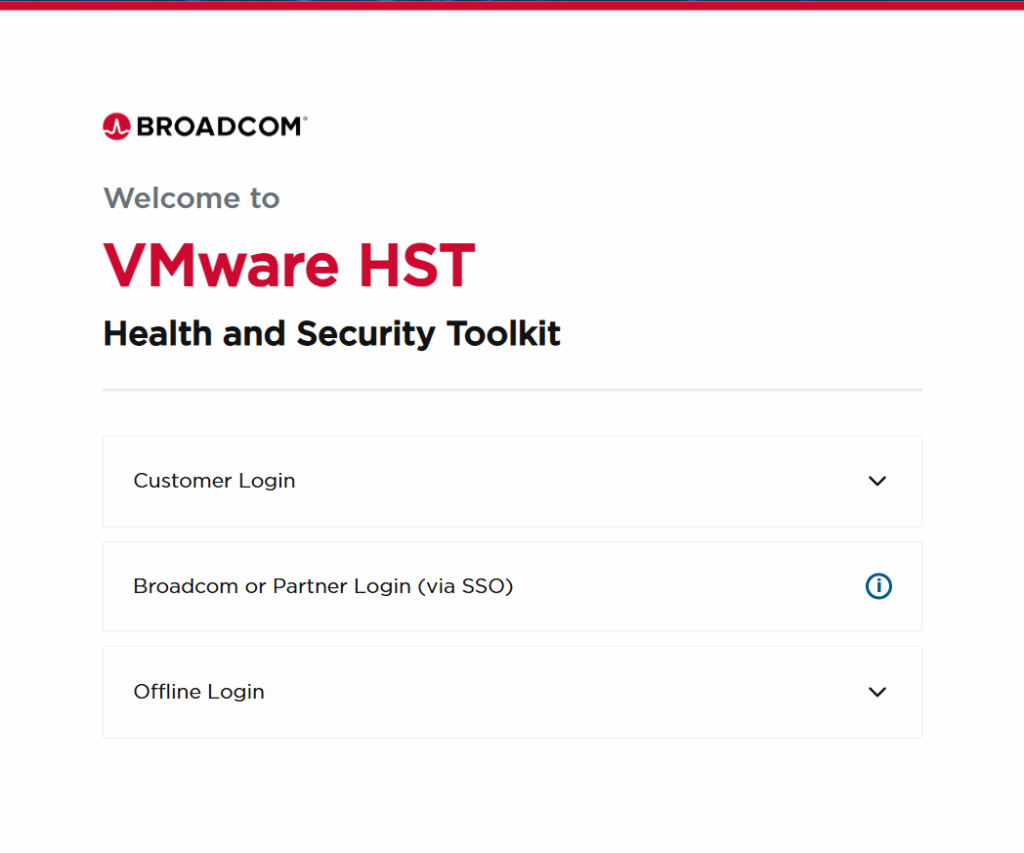
You are presented with three login options. Broadcom customers can use the Customer Login option (web application username/password) to access the HST application for running collections or exporting projects. To start a project, a customer can create a folder and a project.
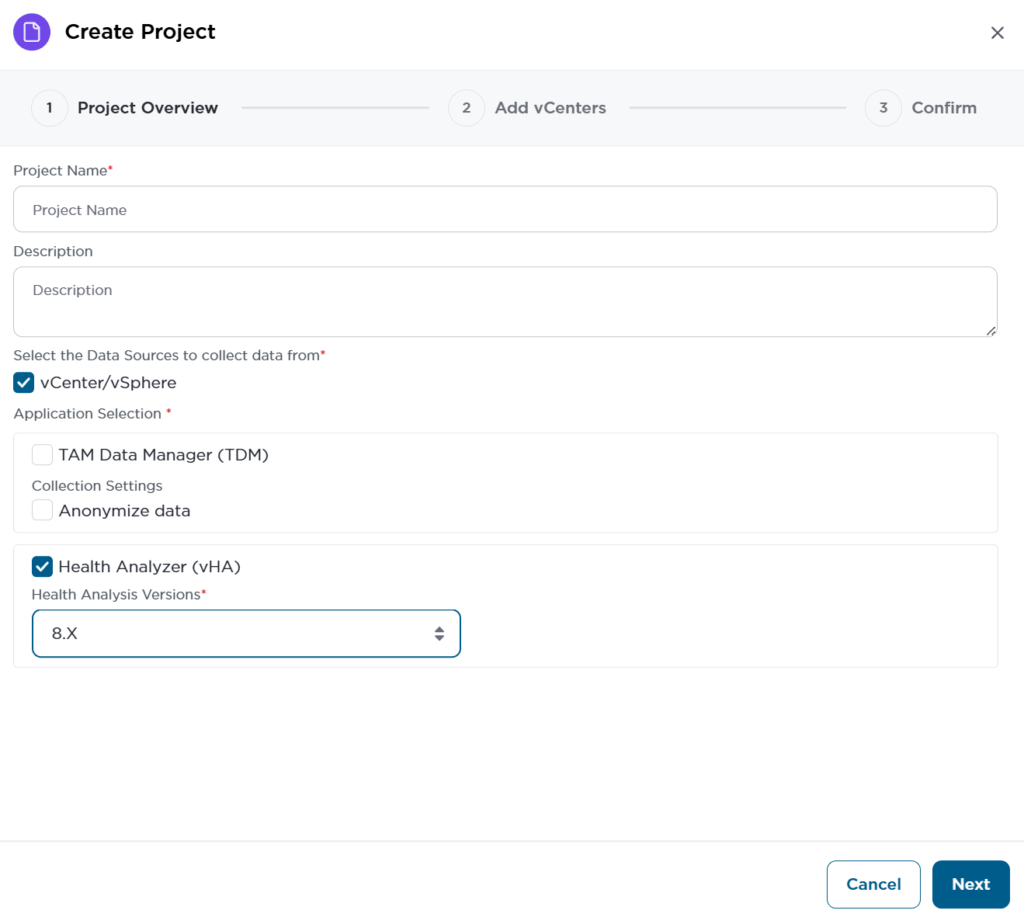
After adding one or more vCenter servers, the scan is performed, and data is presented in the VHA overview.
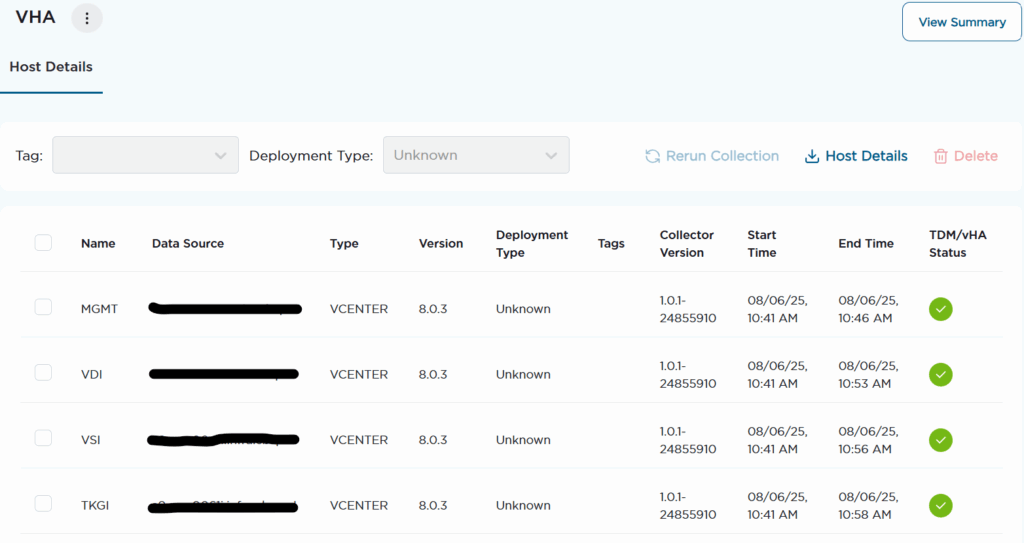
Details from the hosts can be downloaded, but basically, this is it.
Now, when you login as a Broadcom employee or partner, you get something extra…
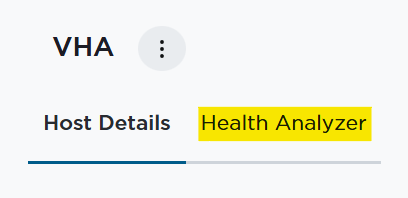
When you select the Health Analyzer tab you are presented with a list of best practises.
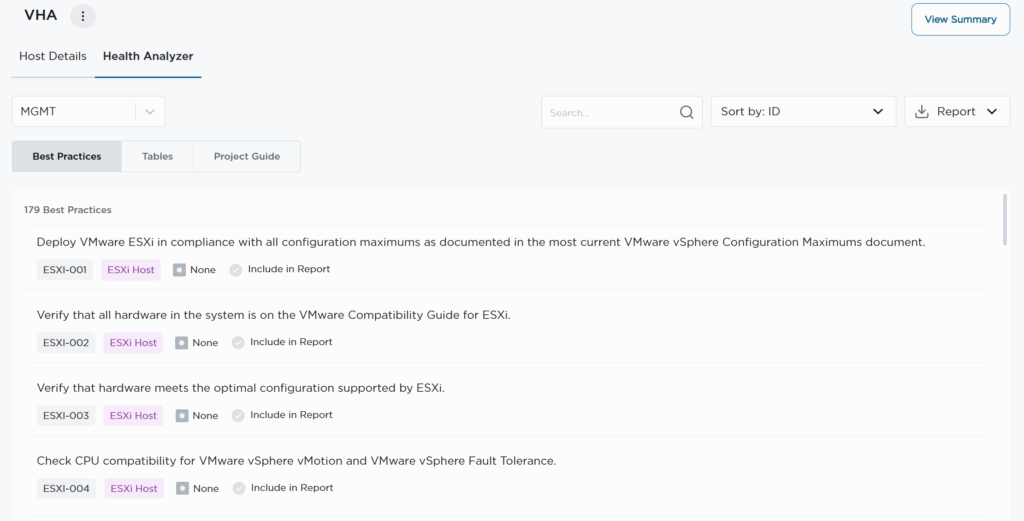
Here you can choose the environment from the drop-down list and whether you want to include or exclude certain best practises in your report. You can view Tables and also the Project Guide which will show you Grades and which best practises are included based on priority.
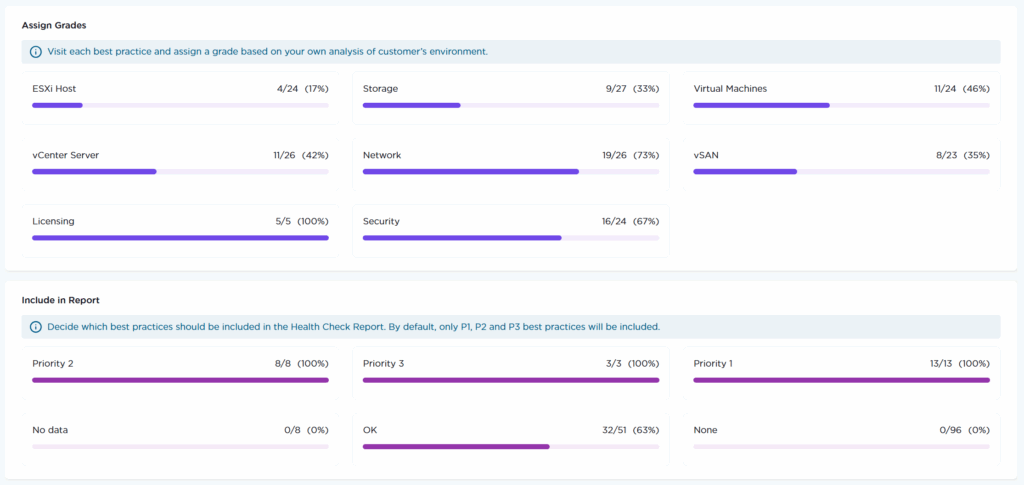
If you want to know more about this great tool have a look at the user guide.